Get gigabytes back from your photo library.
Library Cleanup finds the burst clones, repeat video takes, and screenshot piles hiding in Apple Photos. You review and clear them in a few clicks. Everything runs on your Mac. Nothing is ever uploaded.
In my own library of 27,518 photos, it found 33.4 GB to clear.
Nothing is deleted without your say-so. Removals go to Recently Deleted, recoverable for 30 days.
Free· Open source· Notarized by Apple· Apple Silicon· macOS 13 Ventura or later· ~47 MB
How it works
Four steps, and you approve every removal.
Scan on your Mac
The app reads your Photos library right on your machine and uses Apple's on-device Vision framework to spot look-alikes and clutter. No cloud, no queue.
Review by group
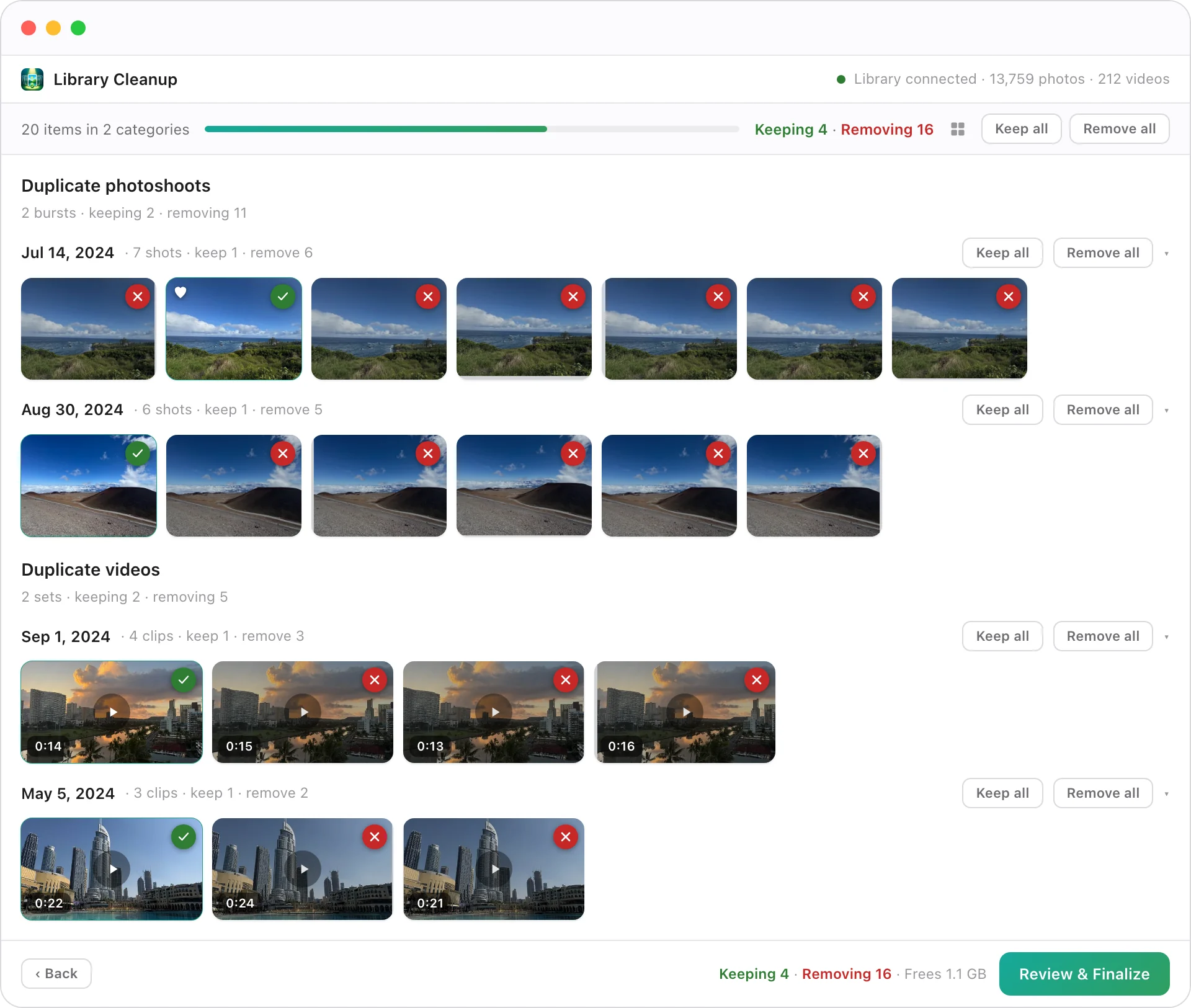
Burst clones, repeat clips, and screenshots are lined up side by side, with the sharpest, steadiest keeper already picked out for you.
It learns your taste
Every keep or discard nudges the next round of suggestions toward the shots you actually care about.
Remove, safely
Confirmed removals go through macOS itself and land in Recently Deleted, recoverable for 30 days if you change your mind.
See it in action
From 50,000 photos to a library you can actually find things in.
Three screens, start to finish: a scan, a plan, and a review with the keepers already picked.
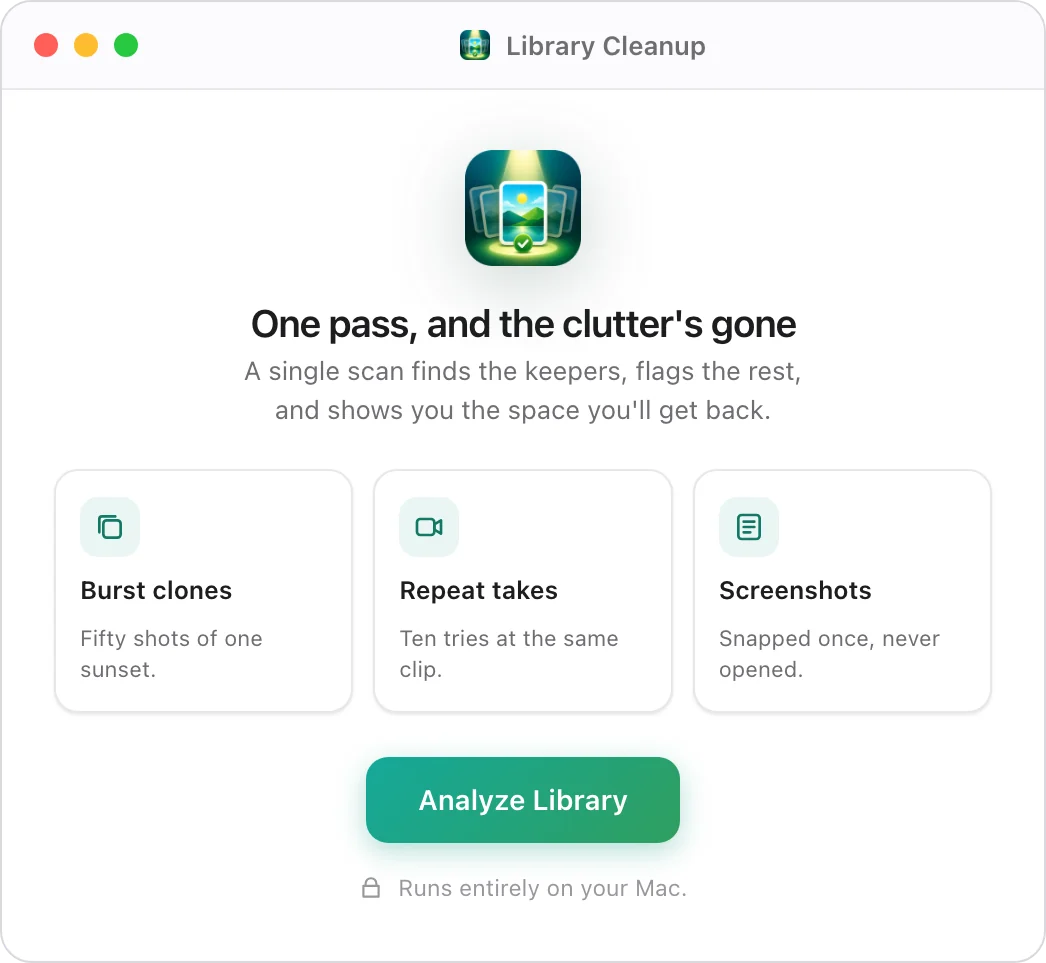
Point it at your library and walk away.
Open the app and click Analyze. Apple's on-device Vision framework reads every photo and video right on your Mac, groups the look-alikes, and surfaces the clutter. No uploads, no account, no queue.
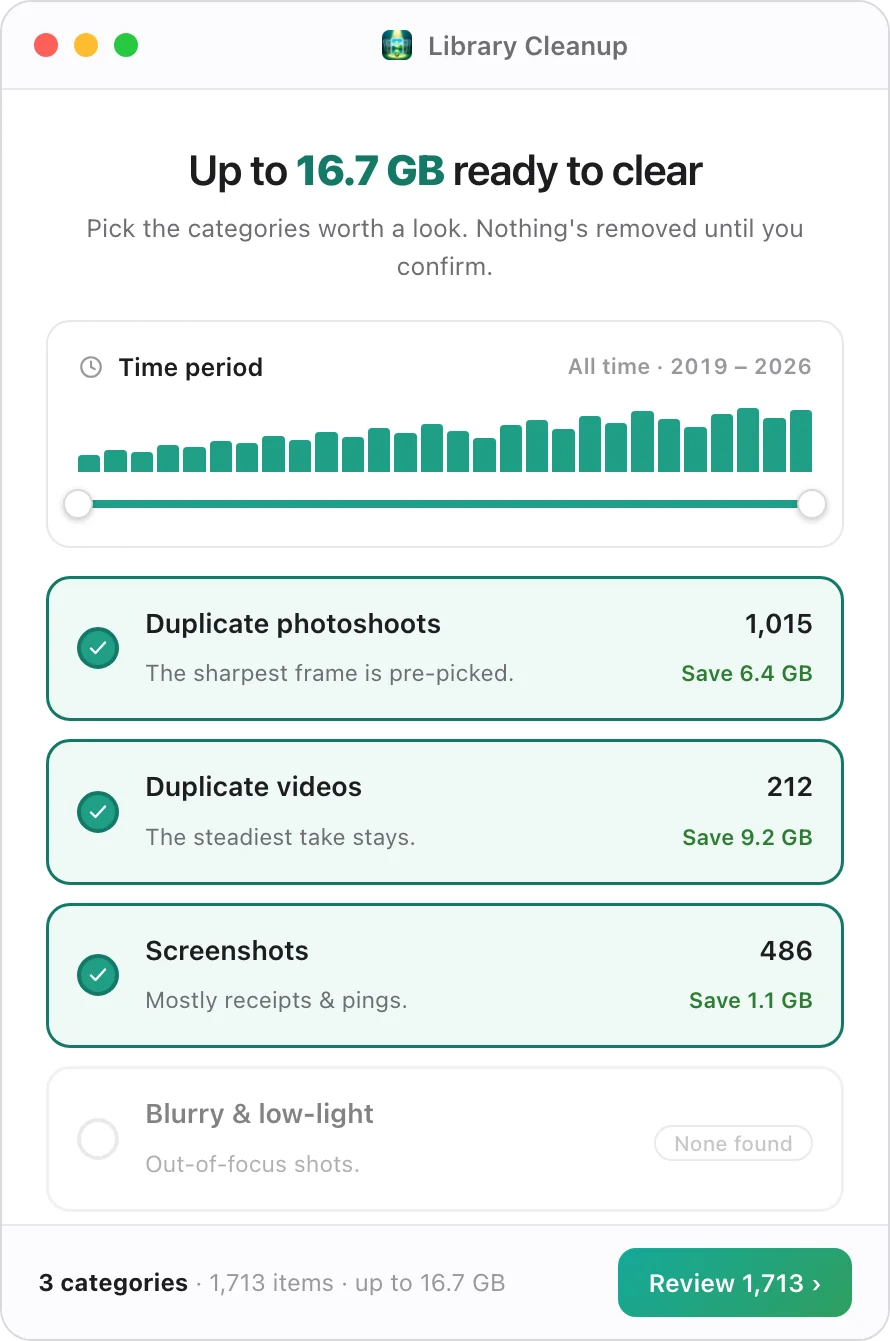
See what you'll get back, then decide what to touch.
Results arrive sorted into plain-language categories, each showing the space it frees. Narrow to a single year with the time slider, switch off anything you'd rather keep, and you've got a clean-up plan before a single photo moves.
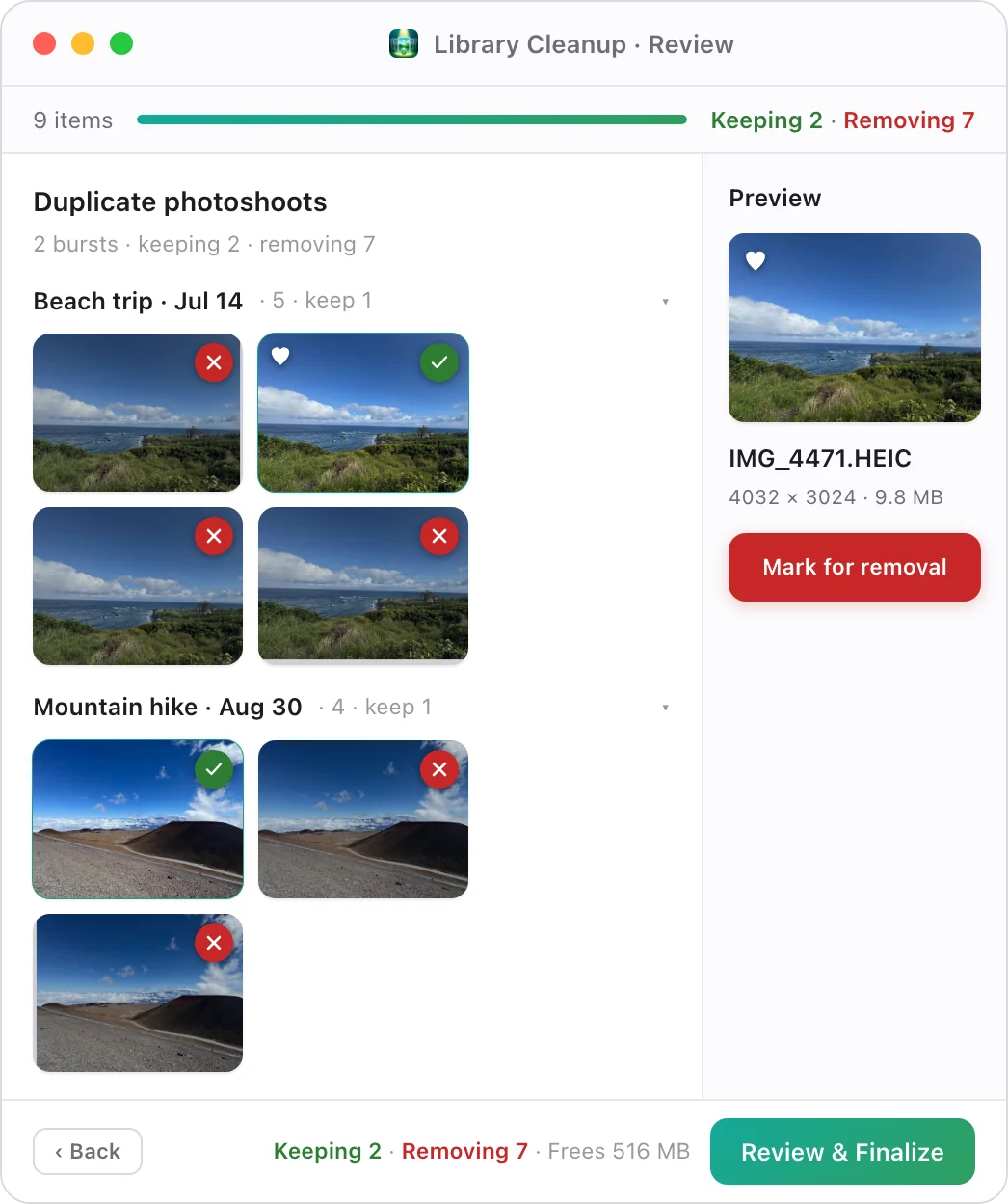
The keepers are already picked. You just correct.
Each group opens with the best shot ringed in green and everything else queued for removal, so most of the time you skim and move on. Click any thumbnail to preview it full-size, flip a keep or remove, and watch the reclaimed space add up before you finalize.
Curious what's hiding in yours?
One scan tells you. It's free, and nothing is removed until you say so.
Download free for macOSFree·Open source·~47 MB
Privacy
Your photos never leave your Mac.
This isn't a policy footnote: it's how the app is built. There is no server to send anything to.
Processed on device
Every scan, comparison, and thumbnail is computed on your own machine using Apple's Vision framework. Your library is never copied off it.
No cloud, no account
Everything happens on your own Mac. No sign-up, no servers, no uploads, no analytics on your images.
Open by design
Because nothing leaves your Mac, there's nothing to breach or sell. No accounts, no fine print.
A fair question
Why isn't it on the Mac App Store?
To do its job, Library Cleanup has to read your whole Photos library and delete photos through Apple's PhotoKit. That needs Full Disk Access and delete permissions the App Store sandbox won't hand out.
Rather than gut what makes it useful to fit the sandbox, I distribute it directly.
And because it asks for that much access, the full source is public, so you (or anyone) can audit exactly what it does on GitHub before trusting it with your library.
Installing
Two permissions, then you're in.
Notarized by Apple, so there's no security warning to work around. macOS confirms the first open, then two permissions let it see your library.
Install and open
Drag Library Cleanup into your Applications folder and open it. macOS asks once whether you're sure you downloaded it. Click Open.
Allow Photos
macOS asks for Photos access as soon as the app opens, before any scan. Click Allow so Library Cleanup can remove the photos you pick.
Grant Full Disk Access
System Settings ▸ Privacy & Security ▸ Full Disk Access ▸ add Library Cleanup. Without it, the app can't read your Photos library.
Delete without the dread
Nothing disappears without you.
You approve every removal
Nothing is deleted automatically. The app suggests; you decide, group by group.
macOS confirms it too
Deletions run through the system's own Photos prompt: a second, native checkpoint.
Recoverable for 30 days
Removed items go to Recently Deleted in Photos, right where you'd expect to find them.
Originals stay untouched
Scanning only reads your library. Nothing is edited, moved, or re-compressed.
FAQ
The questions worth asking.
Does it also delete from iCloud?
If you use iCloud Photos, removals sync across your devices like any deletion you make in Photos. That's exactly why everything goes to Recently Deleted first: you get 30 days to change your mind, on every device.
Is it really free? What's the catch?
Really free. No trial, no locked features, no subscription. I built it for my own library and decided to share it. If it saves you time, a tip is appreciated, but that's the entire business model.
Is it signed and notarized?
Yes. It's signed with an Apple Developer ID and notarized by Apple, so macOS opens it without any security detour. You'll still see the standard “downloaded from the internet” confirmation the first time, the same one every app gets. Notarization means Apple scanned the app for malware; the public source is there so you can check what it actually does with your library.
Will it run on an Intel Mac?
Not yet. Current builds are Apple Silicon only (M1 and newer), on macOS 13 Ventura or later.
What does it never do?
It never uploads your photos, never edits or re-compresses your originals, and never deletes without your confirmation. The only network call it makes is an anonymous check to GitHub for a newer version. The source is public, so you don't have to take my word for it.
About the maker
Made by one person who wanted a tidier library.
Hi, I'm Václav Trnka, an IT product manager. Library Cleanup started as a way to tame my own overflowing Photos library and became a passion project I'm sharing for free. No company behind it, no roadmap board, just someone who cares that it works well and keeps your photos safe.
Questions, ideas, or something not working right? I'd genuinely like to hear it. Reach me on LinkedIn.
Connect on LinkedInTidying photos on your phone too?
Selects is the on-the-go member of the same family: it turns a burst of near-identical shots into its best few, right on your iPhone. Same on-device promise, same safety.
Ready to get your gigabytes back?
Free, private, and entirely on your Mac. See what a clean library feels like.
Download free for macOSFree·Open source·Notarized by Apple·Apple Silicon·macOS 13 Ventura or later·~47 MB